
Streaming to Whatnot from OBS Studio gives you a sharper picture than streaming from your phone, and it lets you add the things the Whatnot app can't: your logo, a spot list, buyer names and on-screen moments. This guide walks you through a vertical OBS setup from a blank install to a live show. It takes about half an hour the first time.
You'll need a Mac or Windows computer, OBS Studio (free from obsproject.com), a camera, and a Whatnot seller account. Whatnot's own help centre has an article on using OBS with your livestream, which is worth keeping open alongside this guide in case anything on their side has changed.
Step 1. Install OBS and run the auto-configuration wizard
Download OBS Studio from obsproject.com and install it. The first time it opens, it offers an Auto-Configuration Wizard. Choose "Optimize for streaming", but don't worry too much about what it picks: you'll set the important values by hand in the next steps.
If you already use OBS for other streams, create a new Profile (Profile → New) and a new Scene Collection (Scene Collection → New) called "Whatnot". That keeps your vertical setup separate from anything horizontal, so you can switch between them in two clicks.
Step 2. Set a vertical 1080×1920 canvas
Open Settings → Video and set both the Base (Canvas) Resolution and the Output (Scaled) Resolution to 1080x1920. Type the values in if they aren't in the list. Set Common FPS Values to 30. Thirty frames per second is plenty for card breaks and is much easier on your computer and upload speed than 60.
Your preview window now turns tall and narrow. That's right: Whatnot is watched on phones, so a vertical canvas means nothing gets letterboxed or cropped into a tiny box.
Step 3. Set up the output: encoder, bitrate and keyframes
In Settings → Output, switch Output Mode to Advanced and open the Streaming tab:
- Encoder: use your graphics card's hardware encoder if you have one (NVIDIA NVENC, AMD or Apple VT). Otherwise use x264.
- Rate control: CBR.
- Bitrate: start around 4,500–6,000 kbps for 1080×1920 at 30fps. Your upload speed should comfortably exceed it, so if a speed test shows less than about 10 Mbps upload, start lower.
- Keyframe interval: 2 seconds.
- x264 CPU preset: veryfast. If your computer struggles, Whatnot's own advice is to pick a faster preset such as superfast or ultrafast.
In Settings → Audio, set the sample rate to 48 kHz. In the Output → Audio tab, 160 kbps for the audio track is a sensible default.
Step 4. Add your camera
In the Sources panel, click + and choose Video Capture Device (on a Mac it's called the same). Pick your webcam or capture card. If your camera is mounted sideways to get a vertical picture, right-click the source and use Transform → Rotate 90°, then Transform → Fit to screen.
Most breaker layouts put the facecam across the top and the cards below, or use one overhead camera for the break mat. Size the camera so your face and hands are inside the middle of the canvas, not right up against the left and right edges; see the safe area step below.
Step 5. Add your overlays as browser sources
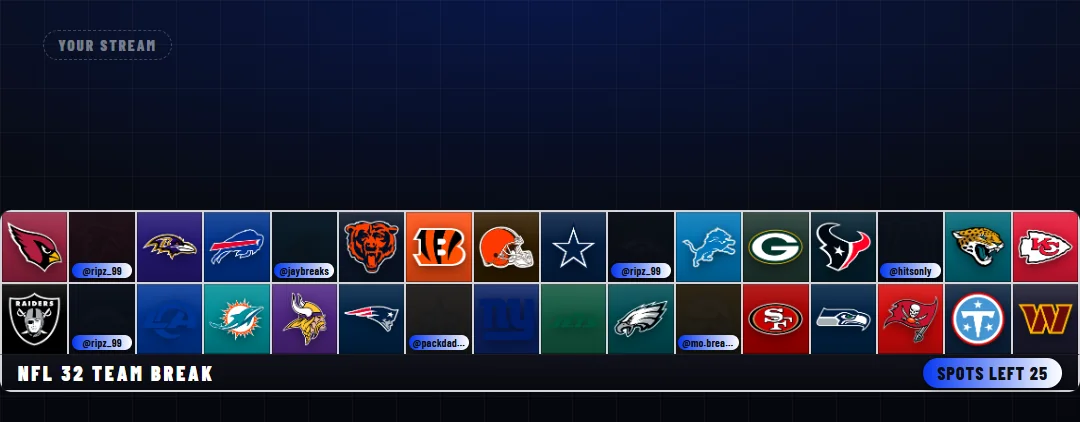
Overlays such as a spot list, a facecam frame or socials are added as Browser sources. Click + → Browser, paste the overlay's link into the URL box and set the width and height to the size the overlay is designed for (for example 1080 × 260 for a spot list strip, or 1080 × 1920 for a full-screen animation layer). Overlays built for streaming have a transparent background, so you don't need a green screen.
Order matters: sources higher in the list sit on top. Put full-screen animations at the very top, then the spot list and frames, then your camera at the bottom.
Step 6. Keep everything inside Whatnot's phone view
Whatnot crops about 10% off each side of your stream for phone viewers. On a 1080-pixel-wide canvas that's roughly 108 pixels on the left and right. Anything important (team names, the buyer on a sold spot, your face, the cards you're showing) should sit inside the middle 864 pixels. Our safe area guide covers this in detail.
Step 7. Connect OBS to your Whatnot show
Schedule your show in Whatnot and choose to stream from OBS. Whatnot gives you a server address and a stream key; Whatnot calls the key a bearer token. In OBS, open Settings → Stream, choose a custom service, and paste in the details Whatnot shows you.
Whatnot's help centre notes that the key changes with every scheduled show, so check it before each stream rather than assuming last week's still works. Once it's pasted in, press Start Streaming in OBS. When your video shows as live in your Whatnot show and OBS shows bitrate stats at the bottom, you're on air.
Step 8. Do a private test show first
Before your first real break, run a short test. Check that your audio isn't echoing, that the picture isn't dropping frames (OBS shows dropped frames in the bottom bar and in View → Stats), and that your overlays look right on a phone, not just on your monitor. Ask a friend to watch from their phone if you can.
A simple scene layout that works
You don't need ten scenes. Most breakers run with two or three:
- Main break scene: camera, spot list, facecam frame, socials and an animation layer on top.
- Starting soon scene: a still image or your logo, with music, for the minutes before you start.
- Close-up scene (optional): an overhead or second camera for showing hits, with the spot list still visible.
Build the main scene first and get it right. You can duplicate it (right-click → Duplicate) to make variations, and every overlay comes with it.
Common problems and quick fixes
The preview is black. Another app (Zoom, a browser tab, the camera's own software) may be holding the camera. Close it and re-open the source's properties.
My stream looks blurry on phones. Check that the output resolution is 1080x1920, not a horizontal resolution with a vertical image squeezed inside it, and that your bitrate isn't too low for the detail in shiny cards.
My voice is out of sync with my mouth. Right-click the microphone in the Audio Mixer → Advanced Audio Properties, and add a small Sync Offset until it lines up. Capture cards often need 100–300 ms.
The show didn't start on Whatnot. Make sure you pasted the key for this scheduled show. Whatnot's key changes with every scheduled show.
Overlays are cut off on phones. They're probably in the outer 10% on each side. Move or scale them into the middle.
Checklist before every show
- New Whatnot stream key pasted into OBS
- Camera and microphone showing in OBS, with no echo
- Overlays loaded and correct (right break, right spots)
- Wired internet, or the strongest Wi-Fi you have
- Phone open on your own show to check what viewers see
Where Breakers Overlays fits in
Once OBS is streaming, the overlays are where your stream starts to look like a show. Breakers Overlays gives you a spot list, facecam frames, socials, banners and on-screen animations as browser source links, and Auto-Claim fills the spot list from your Whatnot sales, so you don't type a name all break. It has a 10-day free trial if you want to try it on your test show.
FAQ
Do I need OBS to stream on Whatnot?
No, you can stream from the Whatnot app on your phone. OBS is what you use when you want a better camera, a computer setup and overlays such as a spot list on screen.
What resolution should I use for Whatnot?
A vertical 1080×1920 canvas at 30 frames per second is a good default, because Whatnot is watched on phones.
Where do I find my Whatnot stream key?
In your scheduled show, when you choose to stream from OBS. Whatnot calls it a bearer token, and it changes with every scheduled show.
Is OBS free?
Yes. OBS Studio is free and open source, for Mac and Windows.
Can I run my overlays from my phone?
With Breakers Overlays, yes: OBS streams from your computer, and you can run the control panel from your phone or tablet.
Breakers Overlays is a set of live OBS overlays for card breakers on Whatnot, TikTok Live and eBay Live: spot lists, Auto-Claim, on-screen animations and Pokémon hit lists, from one control panel.
£19/month or £169/year, everything included. The trial takes a card: cancel in the first 10 days and you won't be charged.