
Most Whatnot buyers watch on their phones, and the phone view doesn't show your whole stream. Whatnot crops the sides of the picture to fill a phone screen, and puts its own buttons and chat over parts of it. If your spot list or facecam sits too close to the edge, phone viewers won't see all of it. This guide covers where the crop is, what the safe area is on a 1080×1920 canvas, and how to check your layout.
Whatnot's app changes over time, so treat the numbers below as a starting point and always check your own stream on a phone.
Step 1. Use a 1080×1920 canvas
Set your OBS canvas (Settings, then Video, then Base Canvas Resolution) to 1080×1920, vertical. Whatnot is watched on phones, and a vertical canvas fills the screen. All the numbers in this guide assume this canvas.
Step 2. Know the side crop
For phone viewers, Whatnot crops about 10% off each side of the stream. On a 1080-wide canvas, that's about 108 pixels on the left and 108 pixels on the right. Anything inside those strips may be cut off on a phone, even though it looks fine in OBS and on desktop.
That leaves a central area about 864 pixels wide. Everything a buyer needs to see (your spot list, your facecam, the cards) should sit inside it.
Step 3. Keep the overlays inside the safe area
Place your spot list, facecam and any text inside the central 864 pixels. Leave a little more room than you think: a board that just touches the line can still look cramped on a phone. Background images and decorative edges can run to the edge of the canvas, since losing them doesn't matter.
Step 4. Watch out for Whatnot's own buttons
Whatnot puts its own interface over your stream on phones: the item and bid buttons, chat, and the seller's name. Exactly where they sit can change between app versions. Watch your own stream on a phone and note which areas they cover, then keep important overlays out of those areas too.
Step 5. Check it on a real phone
The only reliable check is your own stream on a phone. Schedule a test show, go live, and watch it from the Whatnot app on a second device. Look at every overlay: is all of it visible? Are the team logos and names readable? Can you see the cards clearly? Adjust in OBS and check again.
Step 6. Use guides while you lay out
It's easier to get the layout right with guide lines on your canvas. In OBS, you can add a simple image or colour source as a temporary guide showing the 108-pixel strips, and hide it before going live. Breakers Overlays' case break overlay shows yellow guides for the phone safe area while you set up, so you can see where Whatnot will crop.
Why the crop happens
Phones come in many shapes. To fill the screen without black bars, Whatnot scales your stream up slightly and trims the sides. That's why a layout that looks perfect in OBS can lose its edges on a phone. Desktop viewers see more, but they're usually the minority.
Making a spot list fit
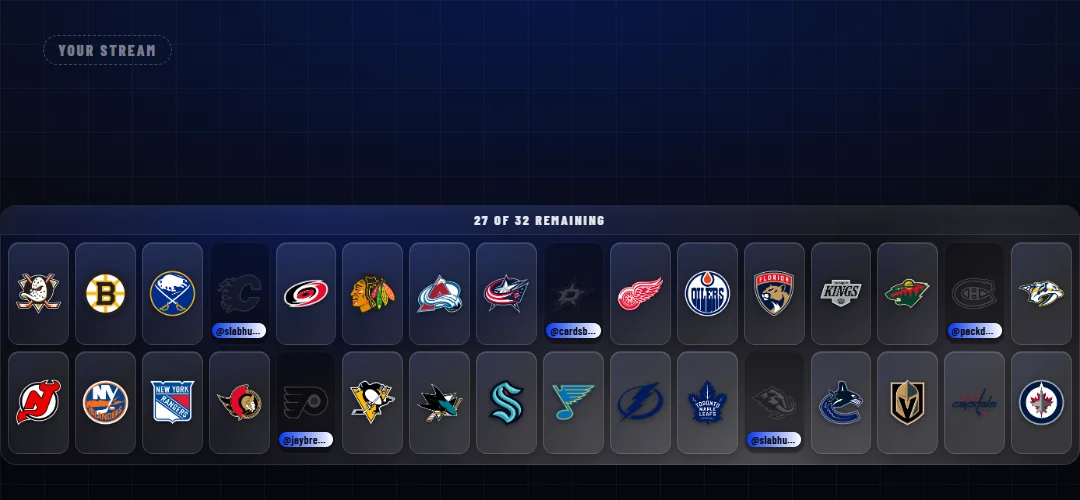
A spot list has to show a lot in a small space: up to 32 teams, logos, buyer names. Inside an 864-pixel-wide area, that means choosing a style made for vertical streams. Compact lists, carousels that cycle through teams, and grids sized for the safe area all work. Breakers Overlays' spot list styles are designed for a 1080×1920 canvas, so the board fits inside the phone view.
Worked example: placing a board
Say your spot list is 800 pixels wide. On a 1080-wide canvas, centre it so it starts at x = 140 and ends at x = 940. That leaves 140 pixels on each side, 32 more than the 108-pixel crop, so the board is fully visible on phones with a little breathing room. If your board is wider than 864 pixels, it will be cut off on phones however you place it, so scale it down or pick a narrower style.
For a facecam 300 pixels wide in the top-right corner, set its right edge no further than x = 972 (1080 minus 108), so place it at x = 652 or less. In OBS, you can type exact positions by right-clicking the source and choosing Transform, then Edit Transform.
Top and bottom of the screen
The side crop is the big one, but the top and bottom of the phone view matter too. Whatnot shows things like the seller's name and viewer count near the top, and the item, bid buttons and chat near the bottom. These sit over your stream rather than cropping it, so your overlay is still there, just hidden behind the app. Keep the most important information, like spots left or a team's buyer, away from the very top and bottom, and check on a real phone where the app's own elements sit today.
Readable at phone size
Fitting inside the safe area isn't the same as being readable. On a phone, your 1080-wide canvas is shown a few inches across, so small text disappears. As a rough rule, team names and buyer names should be at least 28–32 pixels tall on a 1080×1920 canvas, with strong contrast against the background. Logos help a lot: viewers recognise a team logo faster than they read its name.
Facecam placement
Keep your facecam inside the safe area too, usually at the top or bottom of the canvas, away from where Whatnot puts its buttons. A frame around the facecam makes it look tidy at small sizes. See the facecam overlay page for frame styles.
Common mistakes
Laying out on a horizontal canvas. Use 1080×1920. Checking only in OBS. Always check on a phone. Text too small. If you can't read it on a phone at arm's length, buyers can't either. Overlays on the cards. Keep the cards clear; they're what buyers came for.
Layouts that work
A layout that works for most breakers: cards in the middle, large; the spot list above or below them; the facecam in a top corner inside the safe area; and on-screen animations playing over the centre for a moment, then clearing. Breakers Overlays is built for this layout on Whatnot, with a 10-day free trial.
FAQ
How much does Whatnot crop on phones?
About 10% off each side. On a 1080-wide canvas, that's about 108 pixels on the left and 108 on the right.
What is the safe area on a 1080×1920 canvas?
The central area about 864 pixels wide. Keep your spot list, facecam and text inside it.
Why does my overlay look fine in OBS but cut off on a phone?
Whatnot crops the sides of the stream to fill phone screens. OBS shows the full canvas, so always check on a phone.
Do desktop viewers see the whole stream?
Desktop viewers see more of it, but most Whatnot buyers watch on phones, so lay out for the phone view.
How do I check my layout?
Schedule a test show, go live and watch it from the Whatnot app on a second phone.
Can background images go to the edge?
Yes. Decorative backgrounds can run to the edge of the canvas, since losing their edges on phones doesn't matter. Keep anything buyers need to read inside the safe area.
Breakers Overlays is a set of live OBS overlays for card breakers on Whatnot, TikTok Live and eBay Live: spot lists, Auto-Claim, on-screen animations and Pokémon hit lists, from one control panel.
£19/month or £169/year, everything included. The trial takes a card: cancel in the first 10 days and you won't be charged.