
A spot list is the board of every spot in your break: every team, player or hit, and who has bought it. Putting it on screen answers the two questions chat asks most ("what's left?" and "who's got who?") without you reading the list out every few minutes. This guide covers what a good spot list shows, how to add one to a Whatnot stream, and how to keep it right while you break.
Step 1. Decide what your spots are
Start with the break itself. A random team break uses a fixed list, such as all 32 NFL teams or 30 NBA teams. A player break or a club break uses whatever the product's checklist covers. A Pokémon hit-list break uses the hits in the set. Write the list down before you set anything up, including any extra spots you sell, such as a "Misc" spot or a bundle.
Step 2. Choose how the spot list will be made
There are two ways to put a spot list on stream. You can make one by hand: an image or text source in OBS that you edit as spots sell. It's free, but you'll be editing it live, mid-break, which is exactly when you're busiest.
Or you can use a live spot list overlay: a browser source that shows every spot with a logo or photo, and updates itself when you mark a spot as sold, or when a Whatnot sale comes in. That's what tools like Breakers Overlays do.
Step 3. Show the right information on each spot
Whatever you use, each spot should show three things clearly: the name of the team or player, a logo or photo so viewers can find their spot at a glance, and, once it's sold, the buyer's name. A "spots left" counter helps too, especially near the end of a break when chat is deciding whether to jump in.
Keep the text big enough to read on a phone. Whatnot viewers are mostly watching on a small screen, so a spot list that looks fine on your monitor can be unreadable for them.
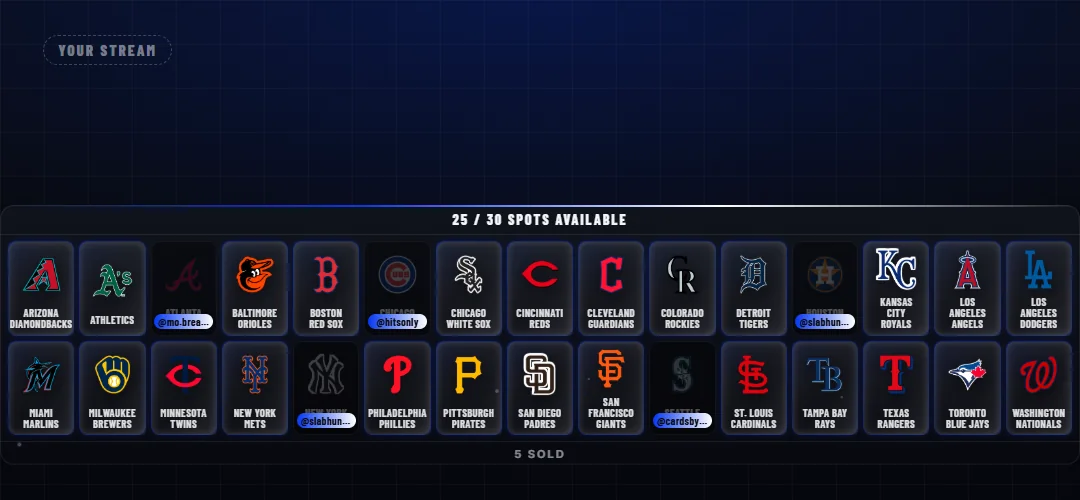
Step 4. Add it to OBS as a browser source
For a live overlay, copy its link and add it in OBS with Sources → + → Browser. Set the width and height to the overlay's size. For a vertical stream, a spot list usually sits as a strip across the lower part of the 1080×1920 canvas, under the camera, or as a carousel along the bottom.
Step 5. Keep it inside the phone view
Whatnot crops about 10% off each side for phone viewers, roughly 108 pixels each side of a 1080-wide stream. A spot list that runs edge to edge can lose its first and last columns. Use a style with some margin, or scale it so the important part stays in the middle. See the safe area guide.
Step 6. Keep it updated during the break
This is where most hand-made spot lists fall apart. Every sale means stopping to type a name, and in a fast break you fall behind. With a live overlay you mark spots from a control panel on your phone, or let it fill itself: Breakers Overlays' Auto-Claim reads each Whatnot sale and marks the spot with the buyer's name and price.
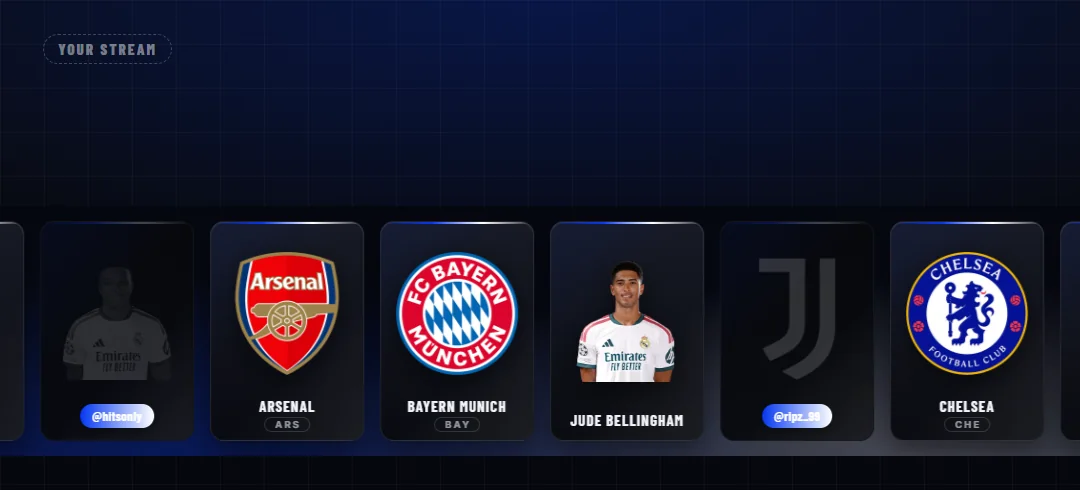
Add a moment for each sale if you can. On team boards, Breakers Overlays plays a team takeover; on football, F1 and UFC boards, a card with your logo flips round to show the spot and the buyer. It makes every sale feel like an event, which keeps chat engaged.
Step 7. Save it for next time
If you run the same kind of break every week, save the board. In Breakers Overlays you can save a board as a checklist and switch between saved checklists while you're live, so your Sunday NFL break and your Wednesday Premier League break are both one tap away.
Picking a spot list style
Match the style to your layout. A compact two-row board fits under a facecam without covering the cards. A carousel of big cards shows photos well but only part of the list at a time. A names board, showing every team with who claimed it, works well for the final few spots. A one-row ticker can run along the very top or bottom. Breakers Overlays has eight spot list styles you can switch between mid-break, so you can use a compact board while spots are selling and switch to a names board for the break itself.
Spot list ideas by break type
Random team breaks (NFL, NBA, MLB, NHL): show every team logo, grey out or mark sold teams, and show the buyer's @name on each. A team takeover when a team sells adds energy. See our random team break guide.
Football (soccer) player and club breaks: use club badges and player photos, and mix both on one board if your checklist does.
Pokémon hit-list breaks: use the real card pictures for each hit, and highlight a hit when it's pulled. See the Pokémon hit-list guide.
Case breaks: show each spot's price, and replace the price with the buyer's name once it sells. Breakers Overlays has a dedicated Case Breaks Mode for this.
What viewers look for when they join late
Plenty of buyers arrive halfway through a break. The first thing they do is look for what's still available and what it costs. A spot list that makes open spots obvious (bright, with the logo) and sold spots quieter (dimmed, with the buyer's name) lets them decide in seconds. A "spots left" number in a corner does the same job at a glance, and it creates a little urgency as it counts down. If you hide sold spots entirely, give each sale a moment on screen first, so viewers still see the board moving; Breakers Overlays can show a sold spot briefly, then remove it so only what's left is shown.
Mistakes that make a spot list hard to follow
- Text too small: if you can't read it on your phone held at arm's length, neither can your viewers.
- Too many colours: keep sold and unsold spots clearly different, and keep the rest in your brand colours.
- Covering the cards: the cards are the show. Keep the spot list away from the area where you open packs.
- Falling behind: a spot list that's three sales out of date is worse than none, because viewers stop trusting it.
FAQ
What is a spot list in a card break?
The list of every spot in the break (each team, player or hit) and who has bought it.
Can a spot list update itself from Whatnot sales?
Yes, with a tool built for it. Breakers Overlays' Auto-Claim reads each Whatnot sale and marks the spot with the buyer and price.
Where should the spot list go on a vertical stream?
Usually as a strip under the camera or along the bottom, inside the middle of the frame so Whatnot's phone view doesn't crop it.
Do I need a green screen for a spot list overlay?
No. Overlays built for streaming have a transparent background, so you add them as a browser source and they sit on top of your camera.
Can I show player photos as well as team logos?
Yes. Breakers Overlays shows team logos on NBA, NFL, MLB and NHL boards, and player, driver and fighter photos on football, F1 and UFC boards.
Breakers Overlays is a set of live OBS overlays for card breakers on Whatnot, TikTok Live and eBay Live: spot lists, Auto-Claim, on-screen animations and Pokémon hit lists, from one control panel.
£19/month or £169/year, everything included. The trial takes a card: cancel in the first 10 days and you won't be charged.